
PocketClip for iPhone, iPad and Android
Make videos smaller.
Right on your device.
PocketClip turns large videos into smaller copies that are easier to send and share. Choose a target size or fine-tune the settings. Your video is not uploaded, and your original stays as it is.
- Free, unlimited compression
- No ads
- No watermark
- No account
- No subscription
Coming to iPhone, iPad and Android. Availability
How it works
Free, without limits
Ordinary video compression is free and unlimited. No advertising, no watermark, no account and no subscription.
-
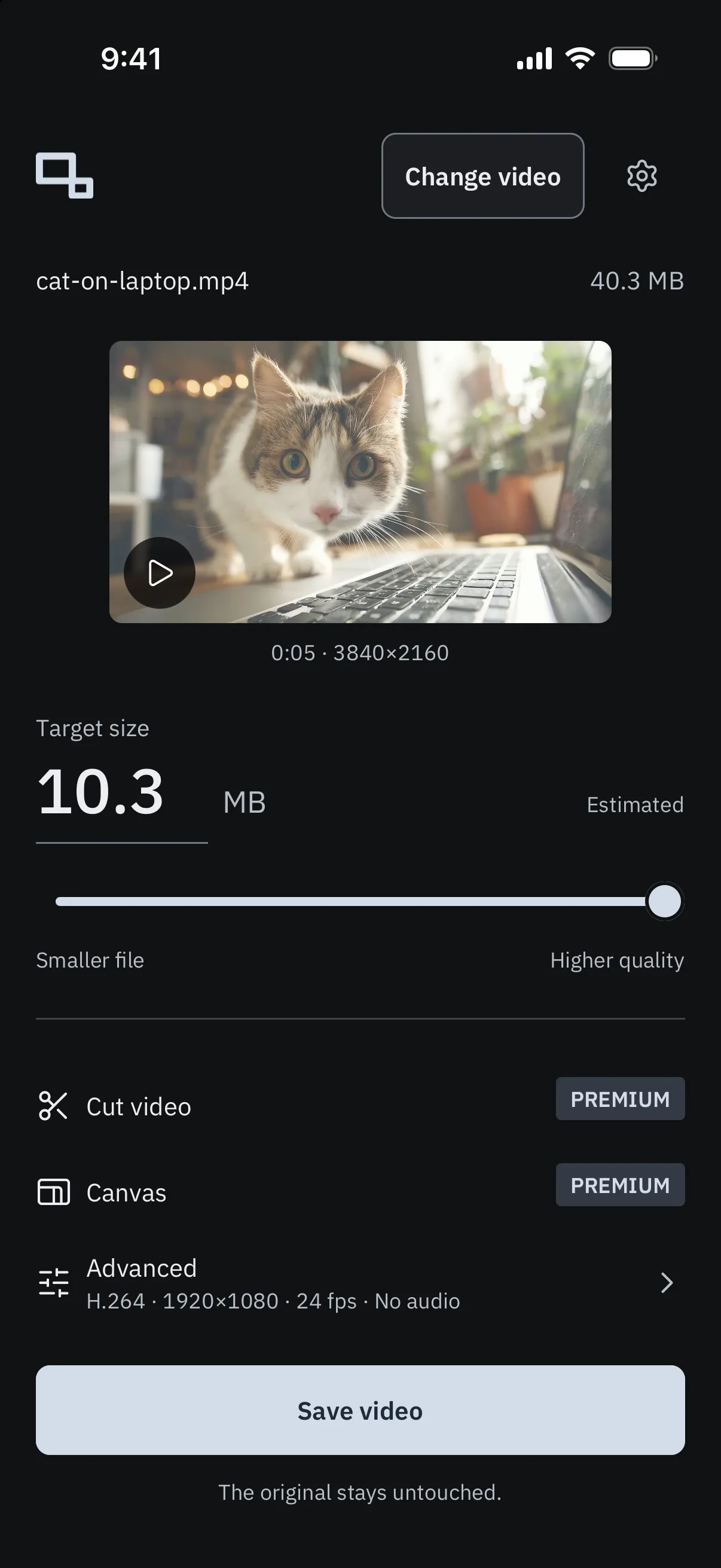
A target size in MB
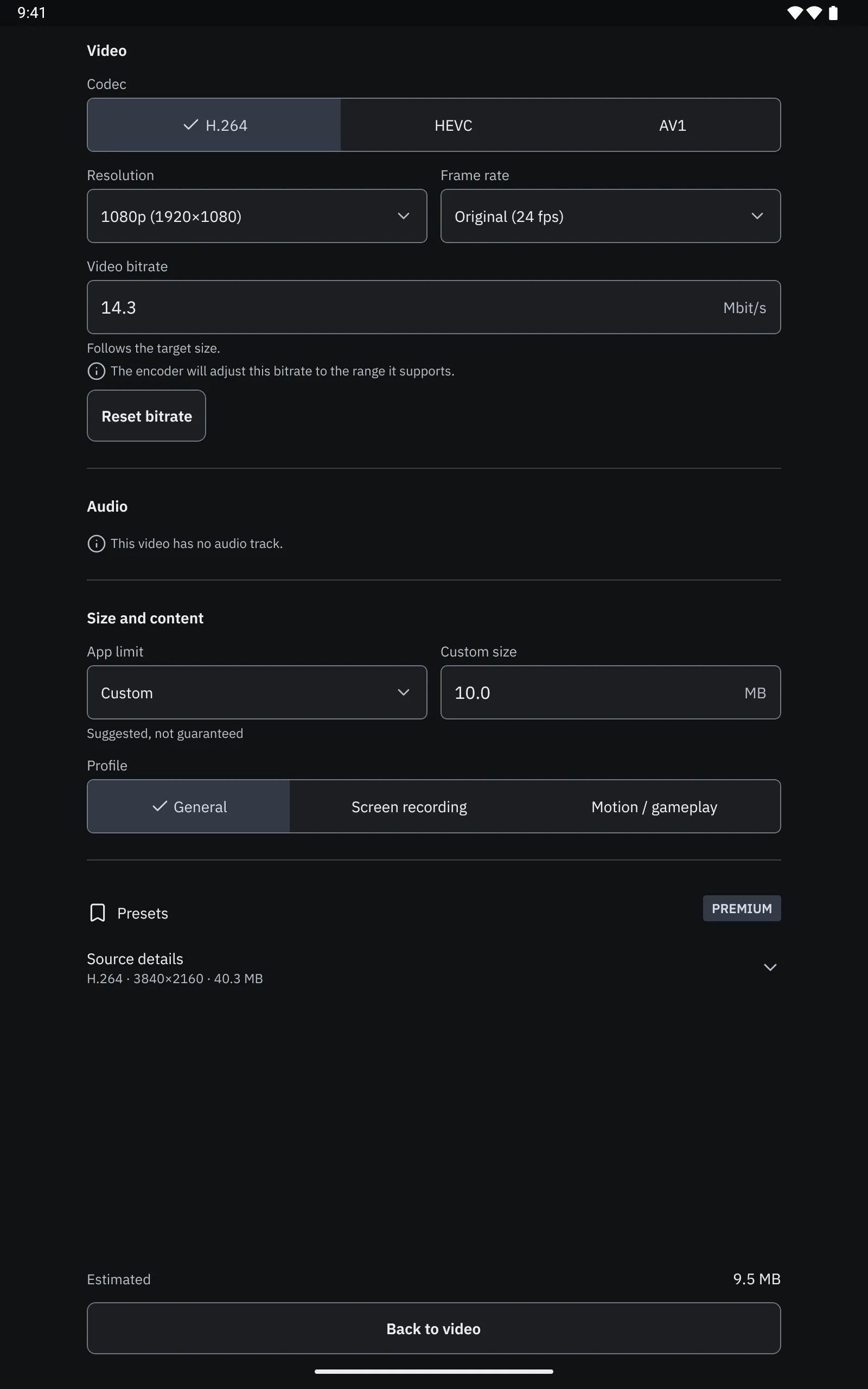
Type the size you need or use the slider, and PocketClip picks matching settings. The size is an estimate: the finished file can turn out slightly smaller or larger, and the app shows you its real size.
-
All the settings, when you want them
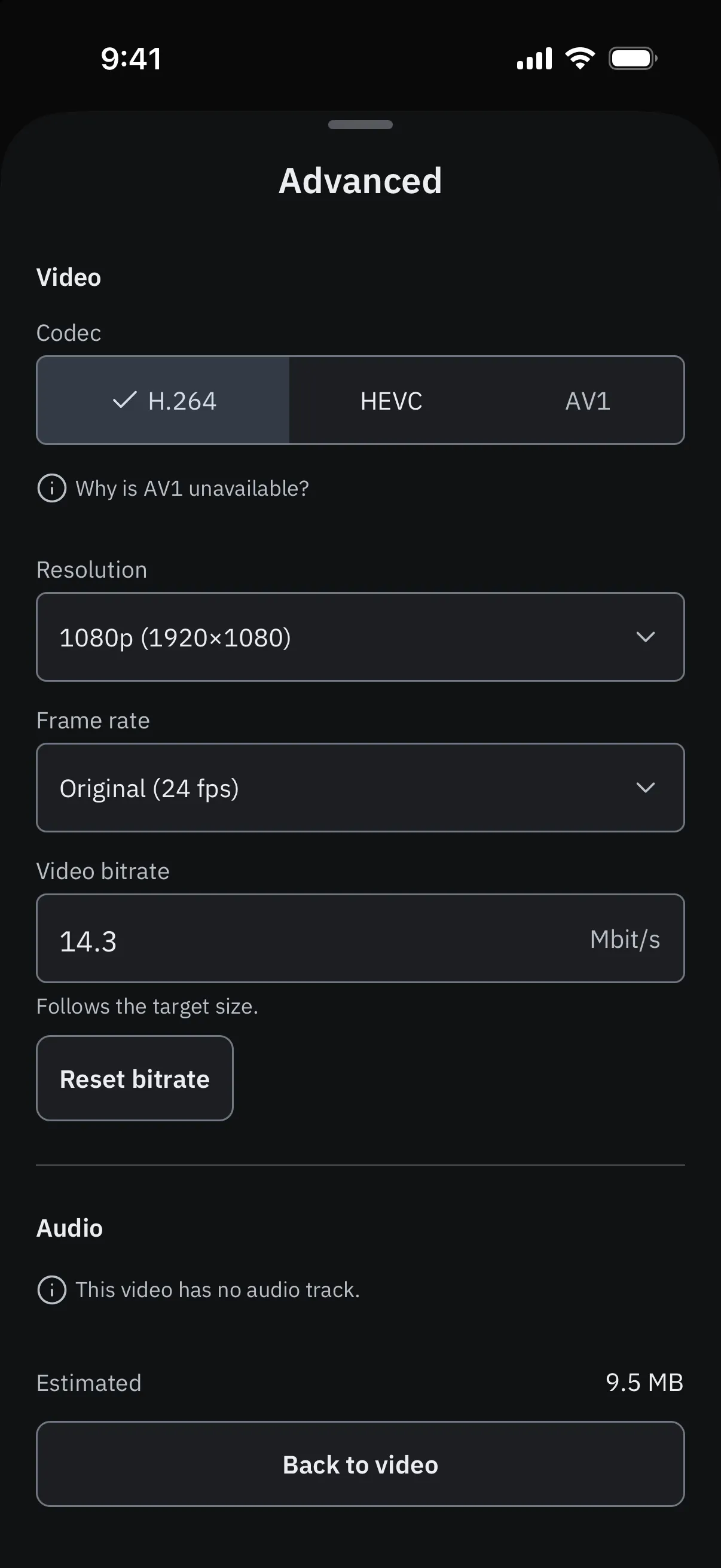
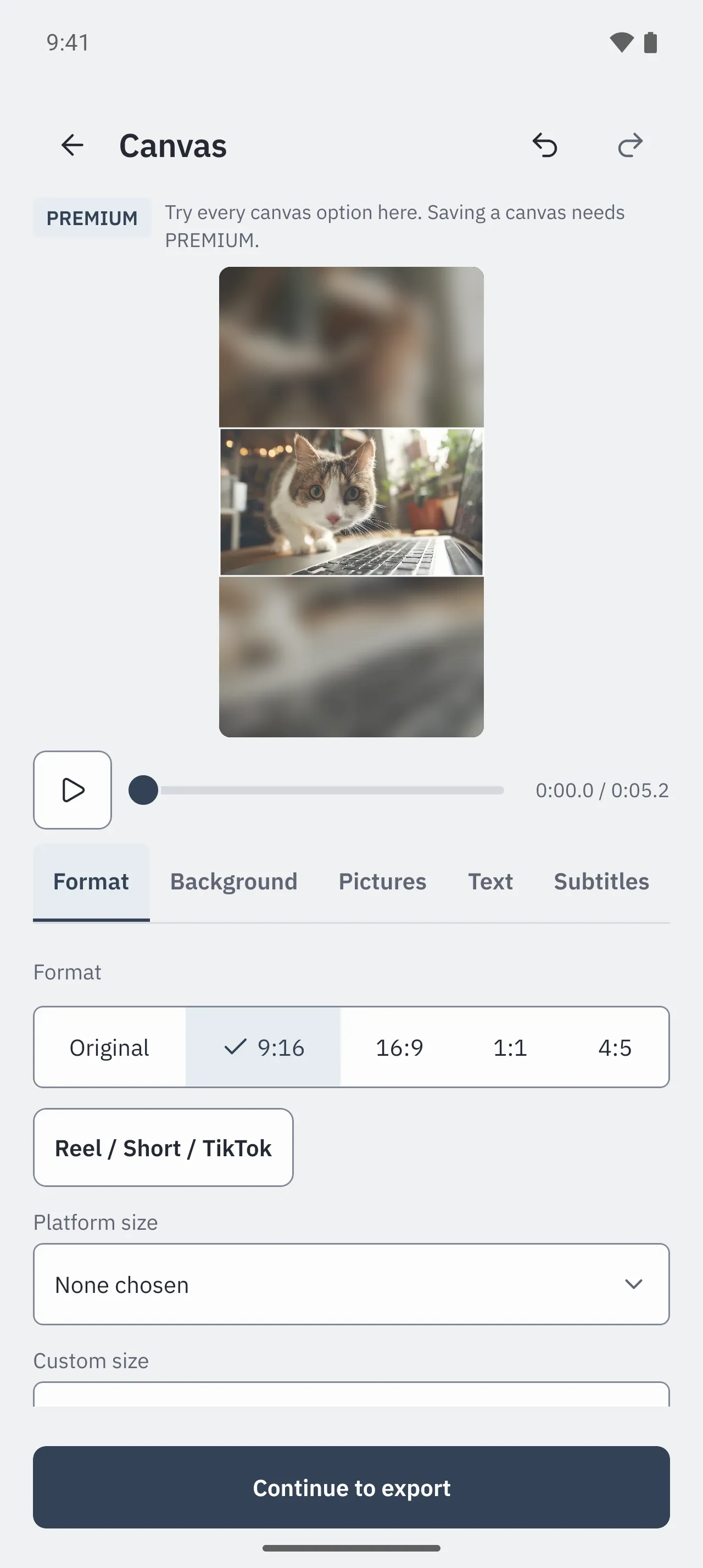
Under Advanced you choose the codec, resolution, frame rate and video bitrate. Resolution and frame rate are only ever lowered, never raised above the original.
-
Codecs your device can encode
H.264 and HEVC (H.265) where your device supports them. AV1 on Android devices with a suitable encoder; AV1 is not available on iPhone and iPad. Options your device can’t use stay visible with a short explanation.
-
Audio the way you need it
Keep the sound at speech, balanced or music quality, change the volume, or remove the audio track entirely.
-
Processed on your device
Compression runs entirely on your iPhone, iPad or Android device. Your videos are not uploaded, and no internet connection is needed to compress.
-
Less hidden metadata
Exports leave out the original’s location, recording date and device details.
-
Light or dark
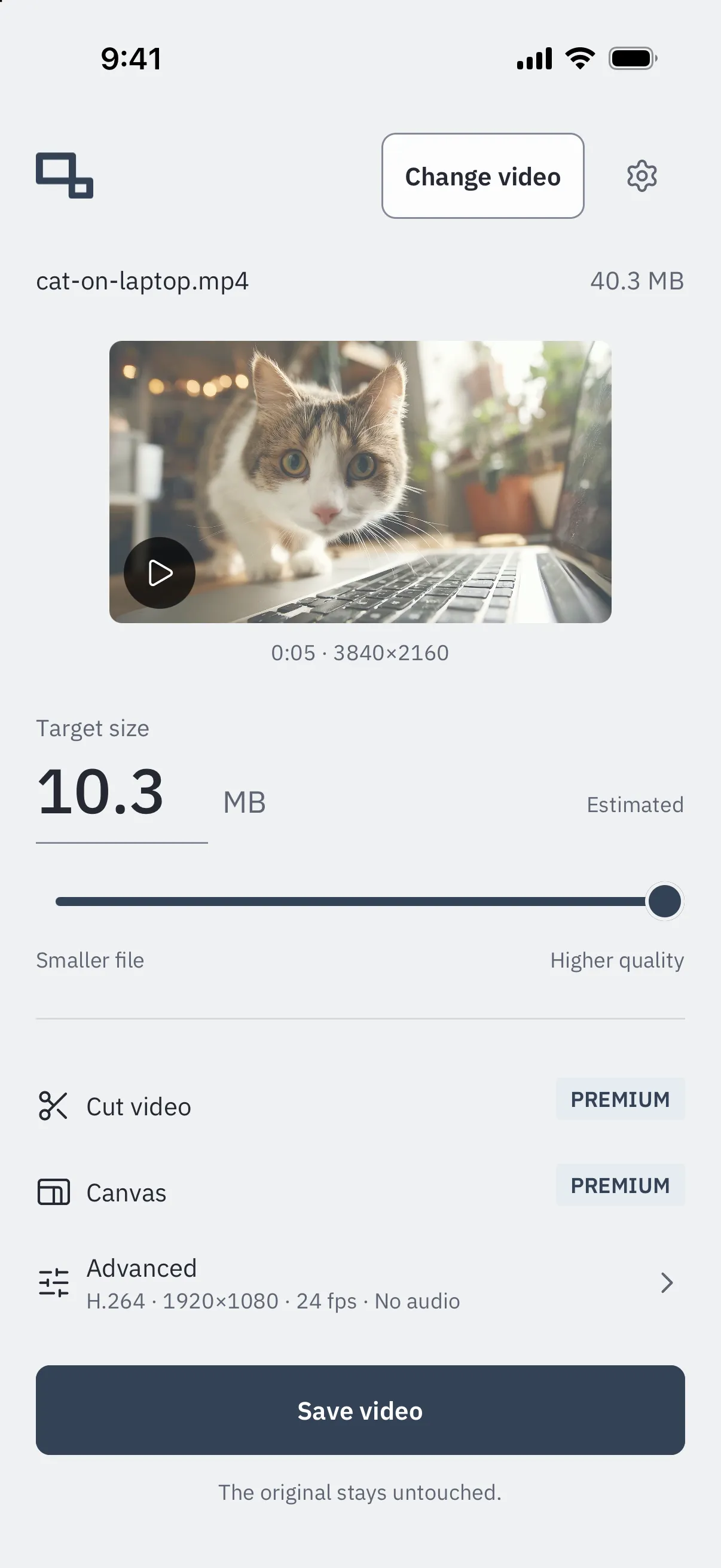
PocketClip follows your system’s appearance, or you choose light or dark in Settings.
PREMIUM
Buy once. Keep it.
PREMIUM is a single, permanent in-app purchase, not a subscription. It adds tools for cutting, framing and captioning your videos. The price is shown in the App Store or on Google Play before you buy.
-
Cut
Trim the start and end of a video, and remove one part from the middle.
-
Canvas
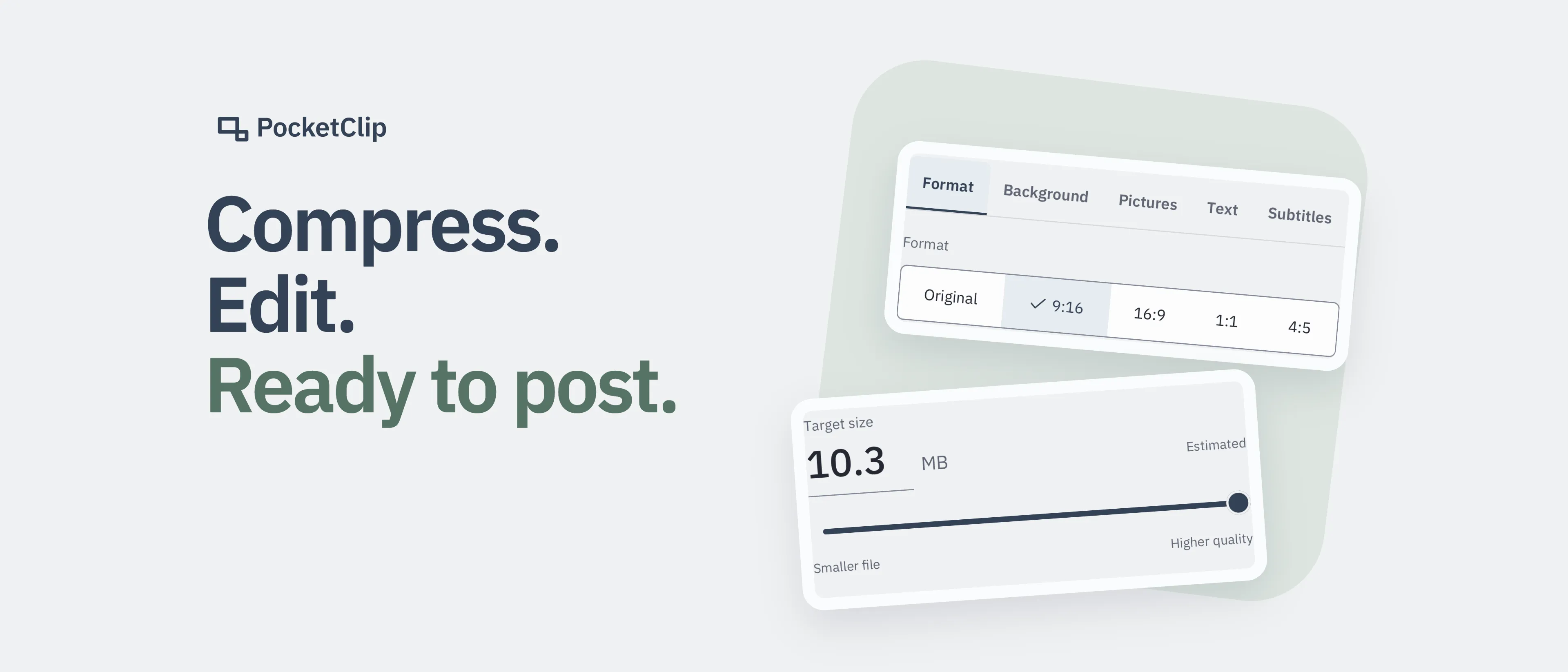
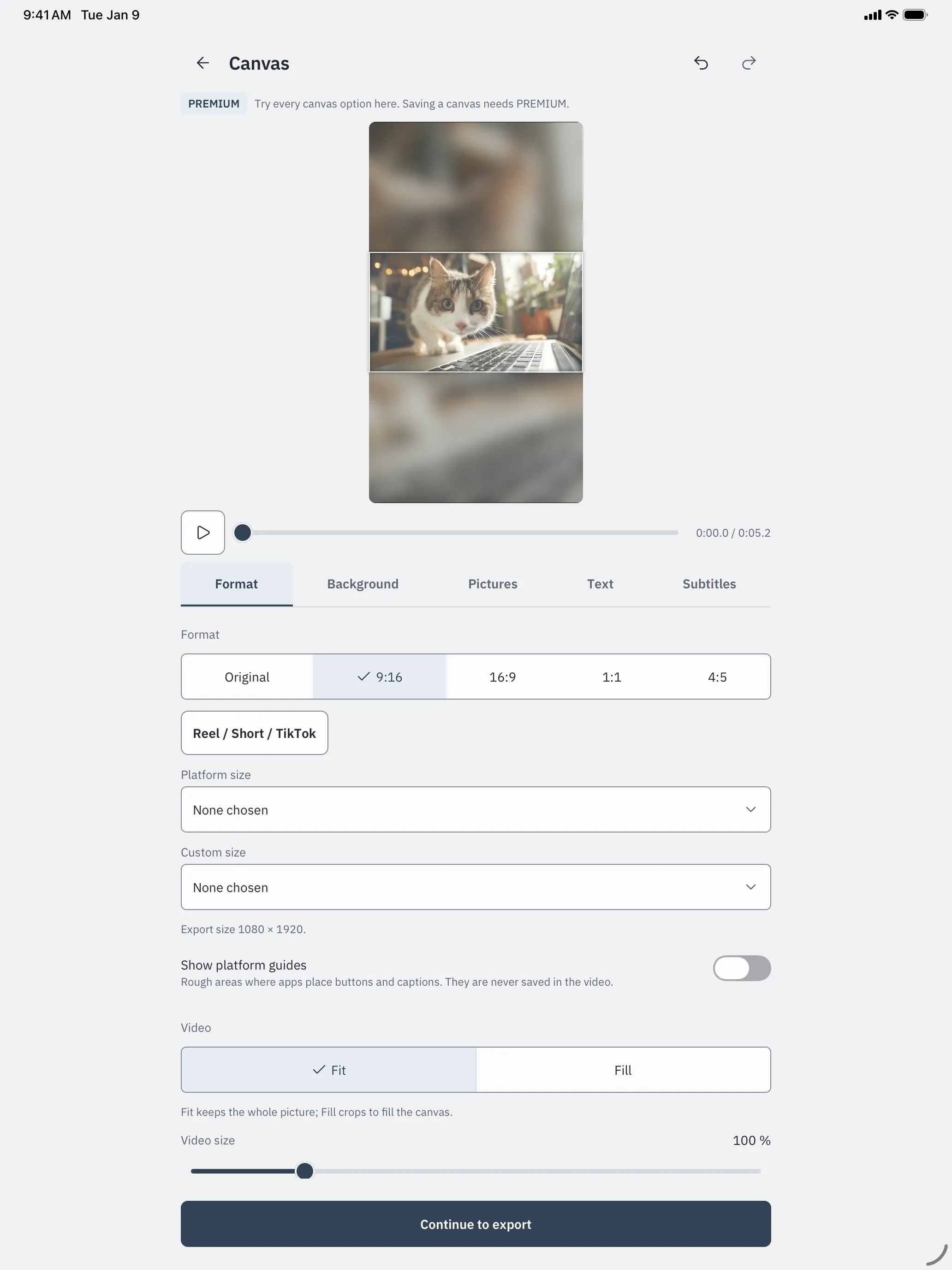
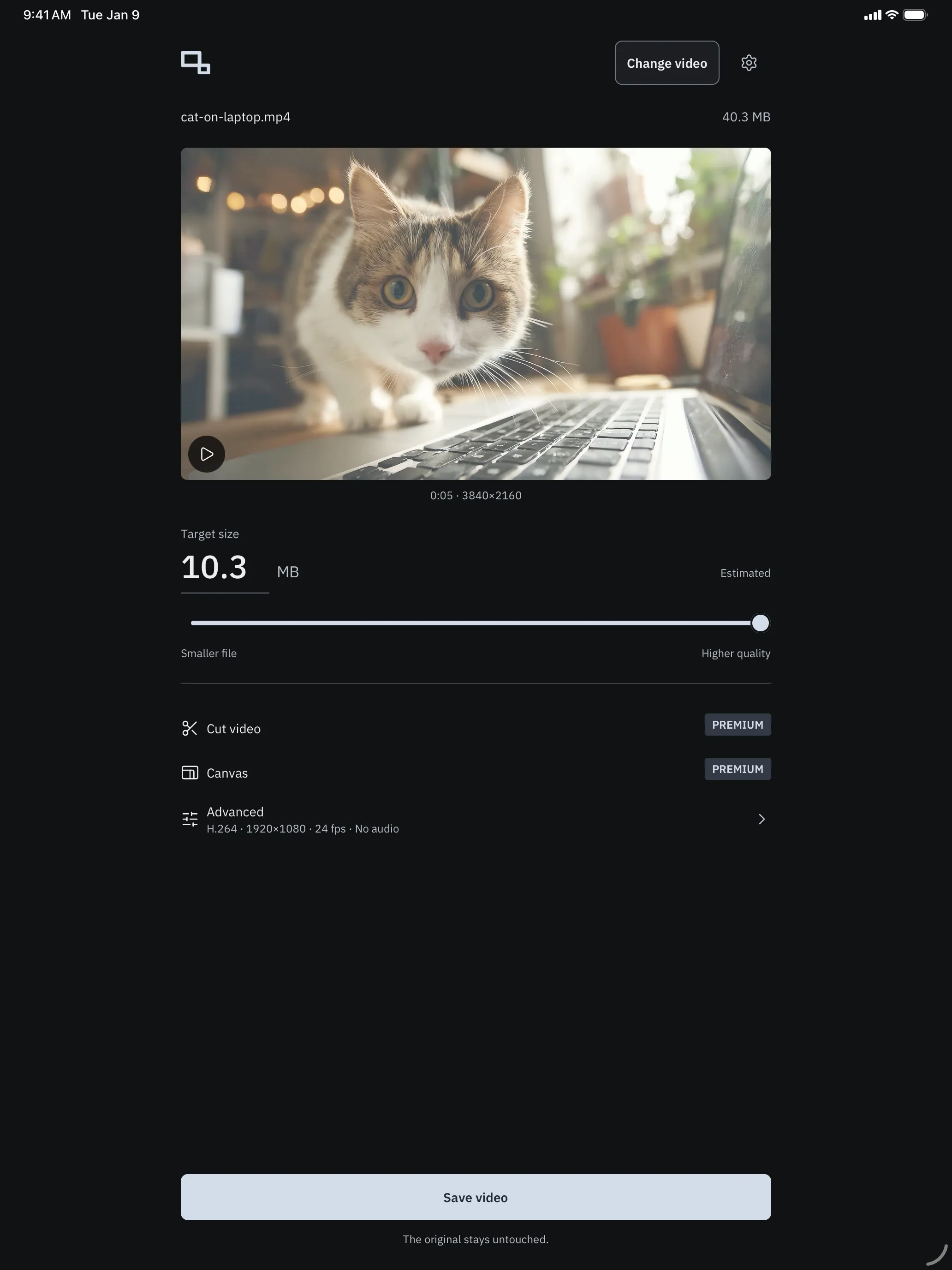
Place your video in 9:16, 16:9, 1:1, 4:5 or a custom format, with sizes for common platforms. Add a blurred, coloured, picture or video background, pictures, and texts that each appear for their own time.
-
Subtitles
Create subtitles on your device with built-in speech recognition, import an SRT file or type them yourself. Edit text and timing, burn them into the video or save them as an SRT file.
-
Presets
Save your own settings as presets and reuse them with one tap.
-
App icons
Give PocketClip a different look on your home screen: Studio light, Blue, Sage or Copper.
Try it before you buy
Without PREMIUM you can open Cut, Canvas and Subtitles, make changes and watch the preview. Exporting a video with these edits, saving an SRT file, and using presets or app icons need PREMIUM. You can always discard the edits and export the video for free.
Already bought PREMIUM?
Tap “Restore purchases” in the app while signed in to the same Apple or Google account. Purchases don’t carry over between the App Store and Google Play. More about restoring
On iPhone, iPad and Android
One app for phones and tablets, in light and dark.
-
Canvas on an Android phone Pixel 9 Pro, Android Emulator -
Advanced settings on an Android tablet Pixel Tablet, Android Emulator -
The main screen on iPad iPad Pro 13-inch, iOS Simulator -
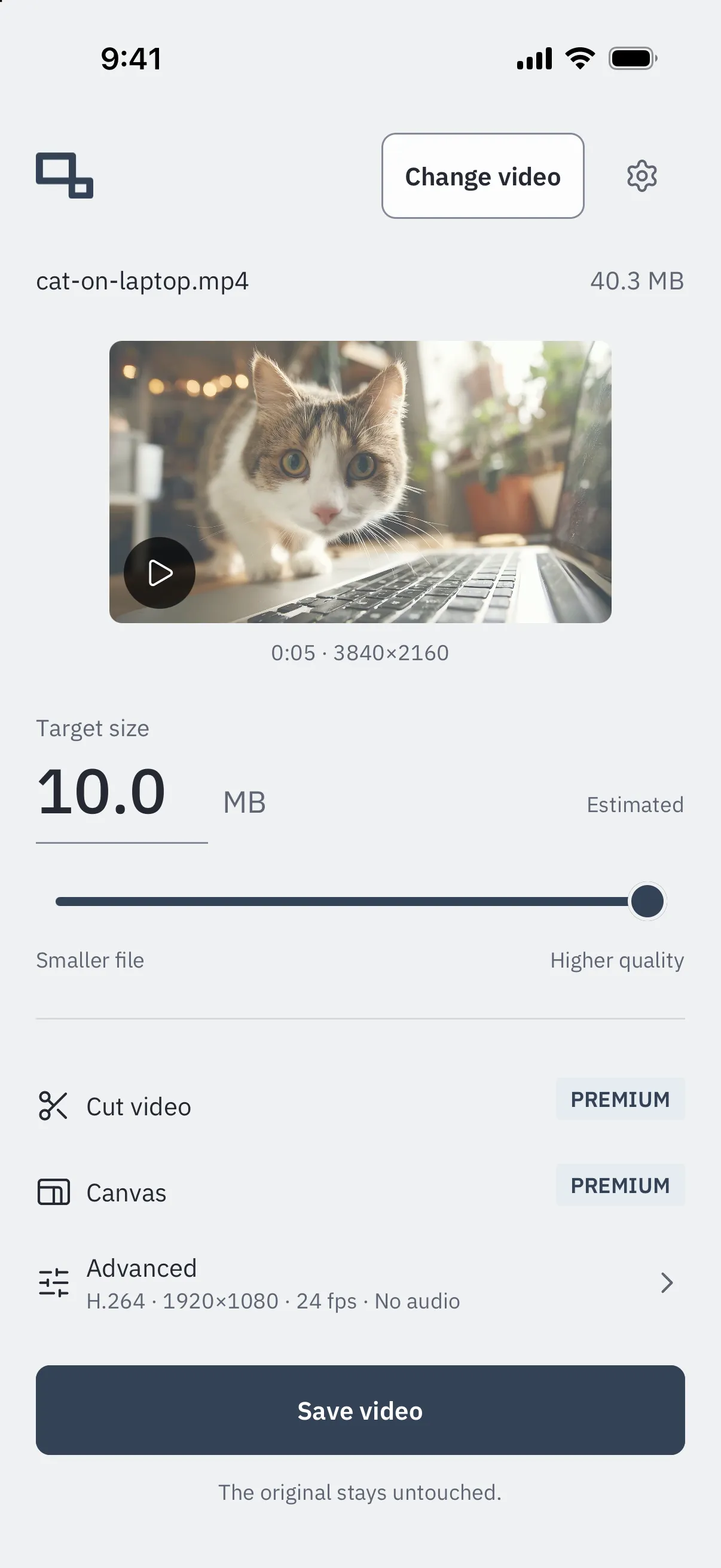
Setting a target size on iPhone iPhone 17 Pro, iOS Simulator
Unedited captures from development builds in the iOS Simulator and the Android Emulator, using a demo video. File sizes depend on the video and the device.
Your original stays as it is
PocketClip never changes or deletes the video you choose. Every export is a new MP4 file, saved to your photo library next to everything else.
Compression, editing and subtitles run on your device. PocketClip has no account, no analytics and no advertising, and it does not upload your videos. The app only connects to the App Store or Google Play to buy or restore PREMIUM.
Exports leave out the original’s location, recording date and device details. What can be seen or heard in the video itself stays, so removing metadata does not make a video anonymous. Privacy policy
Availability
PocketClip is not yet available in the App Store or on Google Play. It is being prepared for iPhone, iPad, and Android phones and tablets. Once it is released, you’ll find the store links here.
The app is in English. Questions in the meantime? Write to support@jnsimedia.de.